"Your Browser Has Been Compromised" — What This Warning Actually Means
Browser warnings that lock your screen, play audio alerts, or display a phone number are not from Microsoft, Apple, or your antivirus. Here is what they are.
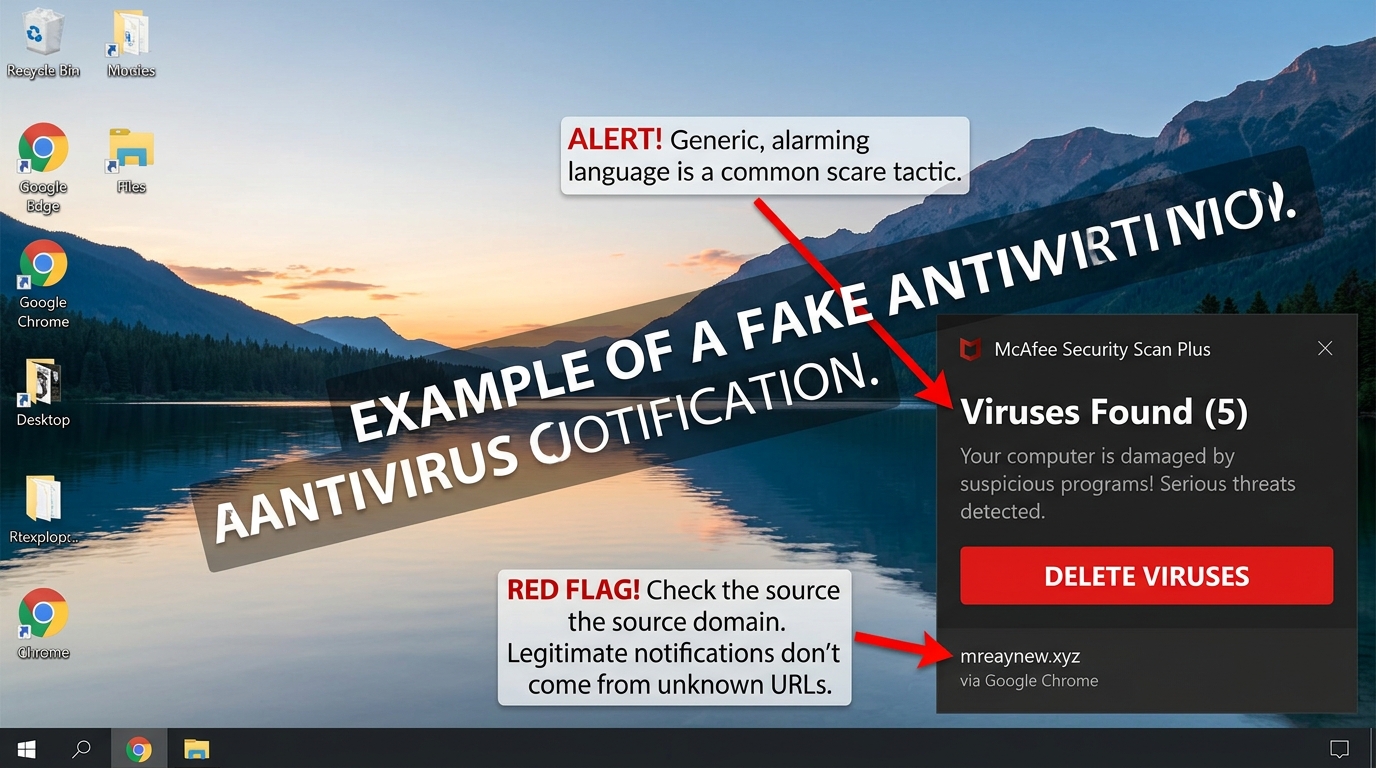
A warning appears in your browser. It says your computer has been compromised, your data is being stolen, or a virus has been detected. It may display a Microsoft logo, an Apple logo, or the name of a security company. It may play a loud recorded voice telling you not to close the window.
This is a browser-based scam page — not a real security alert from your computer. Your computer is not infected by the page itself. The page is designed to look alarming so you will call a phone number or follow instructions that lead to a scam.
Why does this appear?
These pages appear when you visit a website that has been compromised, click a misleading link, or visit a scam site through a search result or advertisement. Some browser notification systems can also push these messages if you have accidentally allowed notifications from a scam website.
What makes it look real
Scammers use the Microsoft or Apple logo and copy the design of official security pages. Some versions use scripts to make the browser window difficult to close, creating the impression that you are locked out. None of this indicates that your computer is actually infected.
The difference between a real warning and a scam
Real browser security warnings — such as Chrome's built-in dangerous site warnings — are part of the browser itself. They have a consistent, simple design. They do not include phone numbers. They do not play audio. They do not prevent you from closing the window. If a warning does any of these things, it is a scam page.
Recommended Immediate Steps
- Press Ctrl + W (Windows) or Cmd + W (Mac) to attempt to close the tab.
- If the tab will not close, press Ctrl + Shift + Esc (Windows) to open Task Manager, find your browser in the list, and select End Task.
If these steps do not close the window, or if you are unsure whether anything was downloaded — contact our team below rather than trying risky actions on your own.
When to Request Second-Opinion Triage
If you cannot close the browser, if you followed any instructions from the page, or if you are unsure whether anything was installed — contact our team before taking additional steps. We can review your situation and advise you on what to do.
Have questions about what you have seen on your screen?
If you need a second opinion on an alert or want help putting proper zero-trust protection in place, our team is available to assist.